Part of the Lekhak guide.
Getting started
What Lekhak is
Lekhak is a writing program for long work: novels, essays, anything with chapters that grow, or a place to keep and organise all your writing in folders. It keeps your manuscript in ordinary files on your own disk, gives you a place to write without thinking about formatting, and makes it easy to export a finished book when you want one.
The idea is simple: just write. Everything else — how the book is dressed when it leaves Lekhak, whether the pages are A4 or Letter, whether there is a title page — is handled by templates. The default should "just work" for most simple texts exported for online reading. Specific needs, like page sizes for publishing, are easy to configure. Extensive customisation is possible if you need it. Detailed guidance is in the Templates and export section.
As a writer, here is some reassurance I know will matter to writers.
Your writing stays yours. A project is a folder of files you can open, read, copy and back up. The data is always stored so that you can edit the raw files on the disk if you wish. Lekhak never locks your manuscript into a proprietary format.
Lekhak is designed to be intuitive to use, so that most features should be easy to understand and you don’t need a doctorate in software configuration to export your own work. If you run into problems, filing a bug on GitHub should get prompt answers.
This guide is also on my blog, where it is updated more often than the copy on your computer, which only changes when the software does. It can be useful to check the blog if you’re struggling with something.
By default, your project data does not leave your computer unless you explicitly configure an API, or something of that kind. There are extensive precautions to ensure your data is never deleted or overwritten without your knowledge.
Making a project
- A project is a folder Lekhak keeps for one manuscript.
- File → New Project… asks for a place to keep the files and a title.
- The title is the project’s own name, and a template can print it with
$${Project}. - Whether it appears in an export at all is up to the template.
- The title is the project’s own name, and a template can print it with
- A new project starts with one empty folder, called Draft.
- Everything you add goes inside it: chapters, scenes, notes, and other folders.
- That first folder is not special — you can rename it, move things into it, or delete it once you have somewhere better to put them.
- For ease of use, consider making separate folders for what you intend to publish — books, essays, papers — and for other things: research, world building, characters, locations.
- Inherited templates make configuring very easy: set the template for the whole folder and there is nothing more to do.
- Only documents are exported, so stray research cannot slip into an export.
- The software will export the documents you select and leave the rest out, regardless of how complex your document organising gets.
The three parts of the window
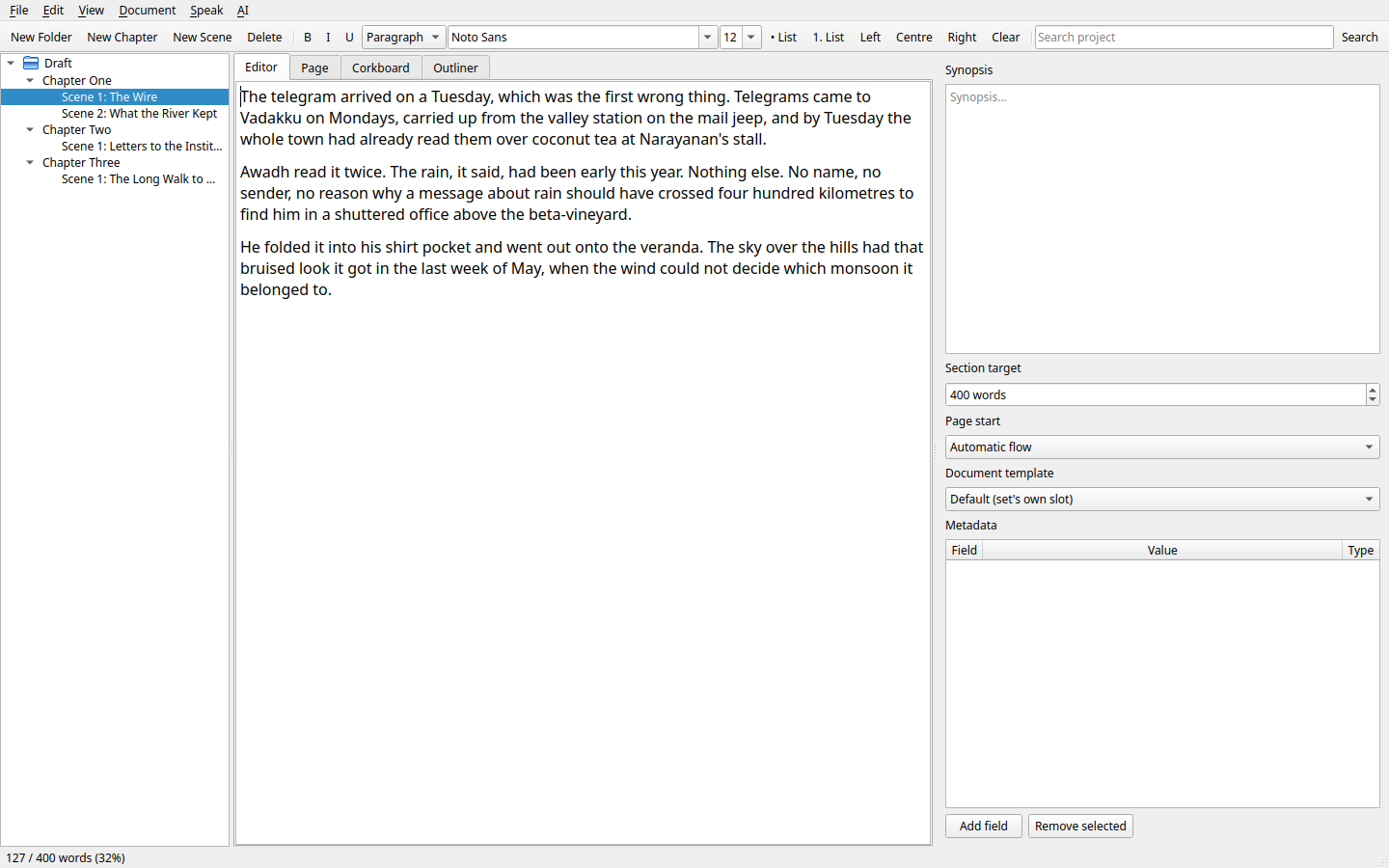
The binder is on the left: your project as a tree. Folders are containers that can hold more folders or documents (or other files, but they won’t be visible in the software)
The page is in the middle: where you write. Depending on your selection in the binder, it can show an editor, page preview for documents and an outliner and corkboard view for folders. More on each type in its section later.
The inspector is on the right and offers further information about the selection depending on the kind of document or folder selected.
Your first scene
Press New Document (the button at the top of the binder, or the binder’s right-click menu). A new empty document appears in a selected folder or after a selected file in the tree, and its title is selected. It is good practice to type a name straight away, as this will also name the file on your disk. If no name is typed, the created HTML will be named by the software, and you may not find it as easy to recognise if you decide to edit source files at a later date. Check to ensure the document appeared where you wanted it to. If a folder already has files, the new document may appear below them, but you may want it at a specific position. You can drag and drop to reorder and organise your project.
When you create the file, the page area in the centre automatically switches to the editor showing your new blank document.
Lekhak autosaves as you type, during pauses. You can close it at any time, and reopening brings you right back.
Ctrl+S saves the file intentionally (not really needed) and takes a backup. Backups are copies of the whole project kept outside it, so they survive even if the project does not; File → Choose Backup Folder… says where they go, and without it they land in a Backups folder beside the project.
Your word count for the document is in the status bar (bottom right of this window), with the reading time beside it, and the daily goal (if you set one) next to that.
Happy writing!